> Markdown twin of https://conduitllm.com/use-cases/mcp-client.html
> A desktop MCP client for stdio and streamable HTTP servers — OAuth, registry install, and consent graded by what a tool can do. Works with any model you pick.
---
1. [Conduit](https://conduitllm.com/)
2. [Use cases](https://conduitllm.com/use-cases.html)
3. MCP client
For developers
# An MCP client that *asks first*
Conduit runs Model Context Protocol servers over local stdio and remote streamable HTTP, with OAuth and one-click installs from the official registry — and it works with whichever model provider you pick, not just one vendor's. A tool asks before it runs unless its server marks it read-only.
[Download Conduit](https://conduitllm.com/#get) See how it works
- Local stdio and remote streamable HTTP
- OAuth tokens go to the OS keychain
- Same features on Windows, macOS, Linux
Local servers run as supervised child processes with restart and backoff; remote ones connect over streamable HTTP with OAuth. Either way, output is capped and redacted before it reaches the model, with a guard against replaying it as an instruction.
The problem
You found or built an MCP server. The client you're supposed to run it in only talks to one vendor's models, can't tell you what a tool is about to do before it does it, and treats Windows as an afterthought where the setup instructions just don't work. You wanted the protocol, not a new walled garden built on top of it.
Comparing clients properly takes more than a features list — [Best MCP clients](https://conduitllm.com/best-mcp-clients.html) checks the transports, consent model, and licence of each one, and [Conduit vs Claude Desktop](https://conduitllm.com/compare/claude-desktop.html) goes row by row on MCP setup specifically.
What Conduit gives an MCP setup
## The protocol, without the guesswork
Local and remote servers behave the same way: supervised, rate-limited, and never allowed to act without telling you first.
### Local and remote, both supervised
Local servers run as child processes over stdio, with restart and backoff, a concurrency limit, and a per-call timeout. Remote ones connect over streamable HTTP with OAuth; tokens land in the OS keychain and never reach the interface. The older HTTP+SSE transport isn't supported.
### A tool asks unless its server marks it read-only
A tool runs without interrupting you only when its server marks it read-only. Every other tool stops and asks, and you can approve it for this chat or always. Sensitive tools always ask, no matter what you've approved before.
### Prompts and resources, not just tools
Pull a connector's saved prompt into the composer and its declared arguments fill in for you to edit. Attach a resource and it rides along with your next message only. A resource that tries to slip in instructions is refused and named, not silently followed.
How it works
## From nothing connected to a running tool call
Three ways in, depending on where the server lives.
### Add a local server
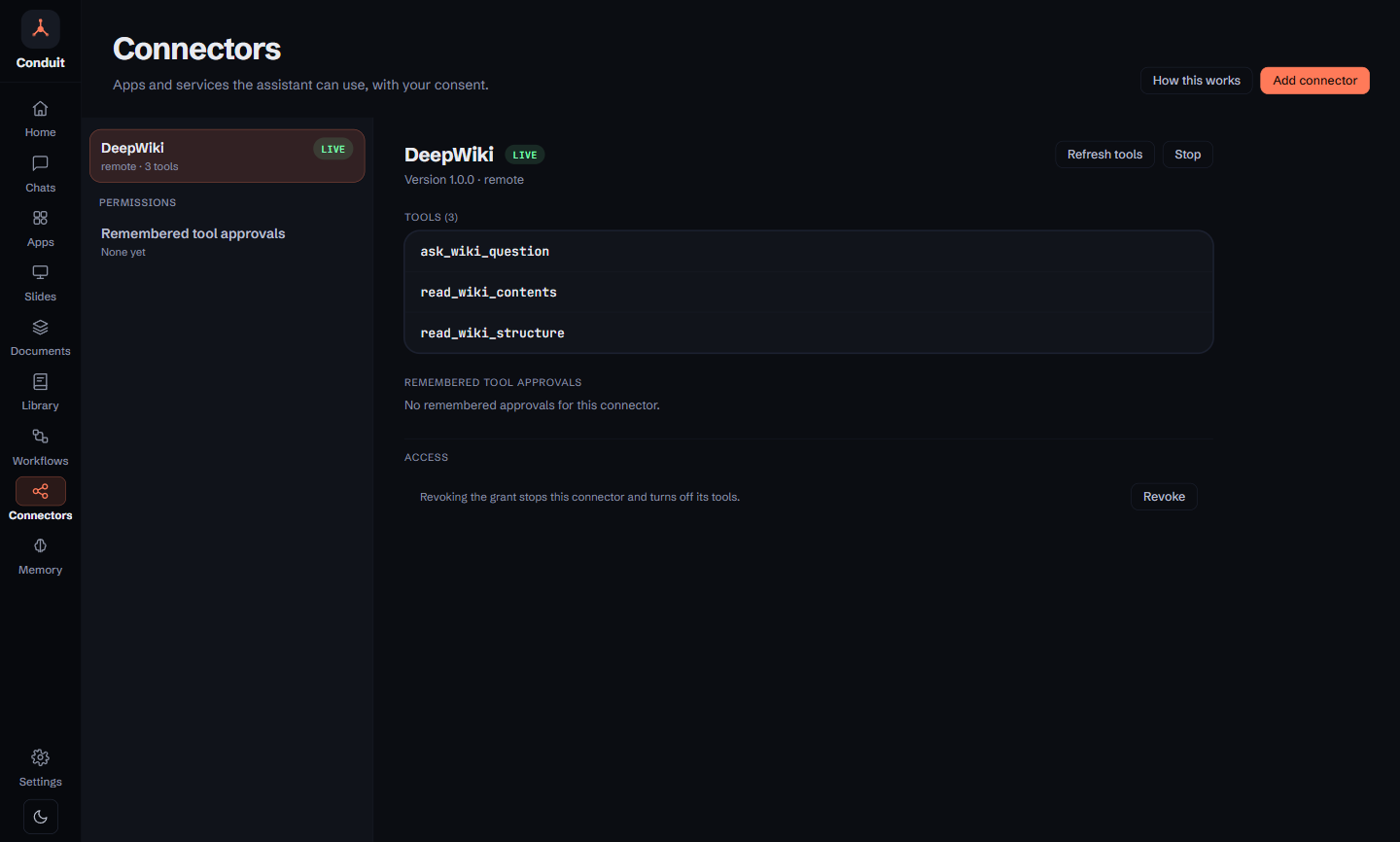
On the **Connectors** page, give the command and arguments that start it. Point at the real program — connectors start directly, never through a shell — so on Windows that means `npx.cmd`, not `npx`, and a `cmd /c …` wrapper is refused rather than silently failing.
### Or search the registry for a remote one
From the same screen, search the official MCP registry and install a match in one click. If the server needs authentication, OAuth opens in your browser and the token lands in your OS keychain — the interface itself never sees it.
### Use its tools, prompts, and resources
Tools marked read-only run on their own; every other tool stops and asks before it runs. Pull a prompt into the composer and its arguments are already filled in, or attach a resource to the message you're about to send.
No MCP required
## Some tools work before you connect anything
A handful of tools ship in Conduit itself, with no server to add and no configuration to write. They follow the same consent rules as any MCP tool, and web access stays off until you turn it on.
- Web search and web fetch — off until you switch them on
- Calculator, current time, UUID, and random
- Clipboard access, and document write and edit
Built the server yourself? [How to demo an MCP server to a customer](https://conduitllm.com/mcp-distribution.html) covers putting it in front of someone who isn't a developer.
Limits
## What it does, and what it doesn't
### What it does
- Runs local MCP servers over stdio as supervised child processes, with restart and backoff, a concurrency limit, and a per-call timeout
- Connects to remote servers over streamable HTTP, including OAuth sign-in, with tokens held in the OS keychain and never surfaced to the interface
- Searches the official MCP registry and installs a matching remote server in one click
- Pulls a connector's prompts and resources into the composer — a prompt picker fills in declared arguments, and a resource attaches to the next message only
- Caps and redacts tool output before it reaches the model, with a structural guard against that output being replayed as an instruction
- Works the same way on Windows, macOS, and Linux — no feature is held back on any platform
### What it doesn't
- Support the deprecated HTTP+SSE transport — a server needs to speak streamable HTTP to connect
- Run `npx` directly on Windows — connectors start without a shell, so use `npx.cmd`, and a `cmd /c …` wrapper is refused outright
- Guarantee every model can call tools — MCP works with whichever provider you pick, but whether that model supports tool calling is up to the model, not Conduit
- Offer a packaged directory of local servers to browse — you add a local one by its command and arguments, or install a remote one from the registry search
- Ship code-signed installers yet — expect a SmartScreen or Gatekeeper prompt on first launch
- Keep registry search and OAuth entirely private — a search term goes to `registry.modelcontextprotocol.io`, and connecting an OAuth server fetches Conduit's own client metadata document from conduitllm.com
## MCP client questions
**What is a desktop MCP client?**
An MCP client is the application that connects a model to your tools over the Model Context Protocol — it decides which servers it can start, where a remote one is reached from, and what to ask you before a tool runs. Conduit is one: a free, open-source desktop app that speaks MCP over local stdio and remote streamable HTTP, and works with whichever model provider you pick rather than one vendor's. See [how it compares to other MCP clients](https://conduitllm.com/best-mcp-clients.html).
**Does Conduit support the SSE transport for MCP servers?**
No — the older HTTP+SSE transport is deliberately not supported. Conduit speaks local stdio for servers on your own machine and remote streamable HTTP for hosted ones; a server that only publishes the legacy SSE endpoint won't connect.
**Can I use MCP tools with any AI model?**
With the model you choose, yes — Conduit doesn't restrict connectors to one provider. What varies is the model itself: not every model supports tool calling, so which servers are actually useful in a given chat depends on the model you pick for it, not on Conduit.
**Where do MCP OAuth tokens go?**
Into the OS keychain, the same place your provider API keys live. The interface that renders your chat never sees the token — signing in opens the server's own OAuth flow, and Conduit's Rust core holds the result.
**Why won't npx start an MCP server on Windows?**
Conduit starts connectors directly rather than through a shell, which is a deliberate security guard — and on Windows that means using the program's real filename: `npx.cmd`, not `npx`. A `cmd /c …` wrapper is refused outright rather than failing quietly. [The docs](https://conduitllm.com/docs.html#tools) cover both cases in full.
**Can I add an MCP server without editing a config file?**
For a remote one, often yes: search the official MCP registry from the Connectors page and install a match in one click, with OAuth handled automatically if the server needs it. A local server still needs a command and its arguments typed in — there's no packaged one-click format for those yet.
Related
## Other ways people use Conduit
For heavy AI users
### Pay per token, not per seat
Your own API keys for every provider, in the same app that runs your MCP servers.
[Bring your own key](https://conduitllm.com/use-cases/bring-your-own-key.html) For air-gapped setups
### Local models, with a real app around them
Ollama or LM Studio underneath, MCP tools on top, and no internet required for either.
Run models locally For MCP server vendors
### Put it under your own brand
Demo your server inside a client with your name on it, not a competitor's onboarding funnel.
White-label Conduit
More on setup and troubleshooting — including the Windows command-naming rules above — is in [the documentation](https://conduitllm.com/docs.html#tools).
## Connect your first server
Free and open source. Bring your own key or a local model, then add a server from the Connectors page.
[Download Conduit](https://conduitllm.com/#get) [Read the connector docs](https://conduitllm.com/docs.html#tools)
A release candidate: installers aren't OS code-signed yet, so expect a SmartScreen or Gatekeeper prompt on first launch.